
Table of Contents
This page explains how to add new items to the Content Tracker and what the system fills in for you.
Steps #
- Go to the Content_Log sheet.
- Enter any of the following in a new row:
- Title
- Platform
- Type
- Status
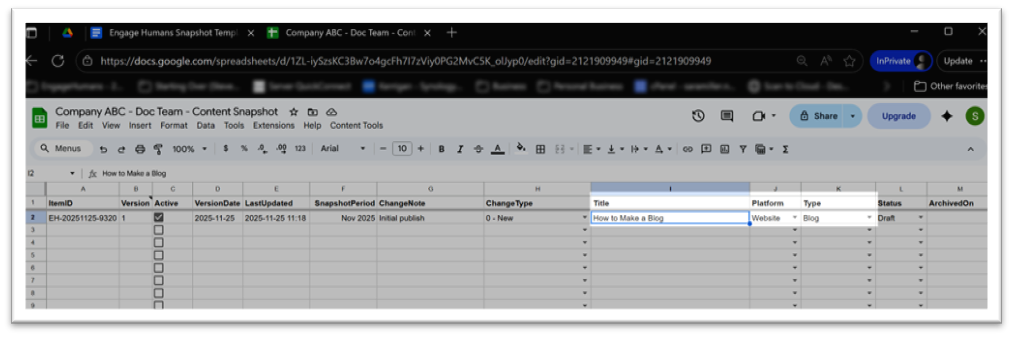
- As soon as one of these fields is entered, the system initializes the row.
What the System Fills In #
When a row is initialized, the tracker automatically sets:
- ItemID
- Version = 1
- Active = TRUE
- VersionDate
- LastUpdated
- SnapshotPeriod
- ChangeNote (“Initial version”)
- ChangeType (“0 – New”)
These fields are system-managed and shouldn’t be edited manually.
What You Can Edit #
You can freely edit:
- Title
- Product
- Platform
- Type
- Status (except “Archived,” which is menu-only)
- URL
- Notes
- Any custom columns you add
These values remain editable even after initialization.
Important Notes #
- Initialization only happens when the row was previously blank.
- Normal edits will not overwrite your URL or Notes fields.
- Bulk pasting can temporarily cause URL or Notes cells to be overwritten during the initialization process.
This happens only when multiple columns are pasted at once, and the system is trying to assign system fields to several new rows at the same time. - If you need to bulk import content, paste Title/Platform/Type/Status first, let the system initialize, then paste URLs and notes afterward.


