
Table of Contents
Use this process when updating an existing item. It preserves clean version history and ensures the dashboard and snapshots stay accurate.
Steps #
- Select the row you want to update
- Choose Content Tools → Create New Version
- Enter a brief change note
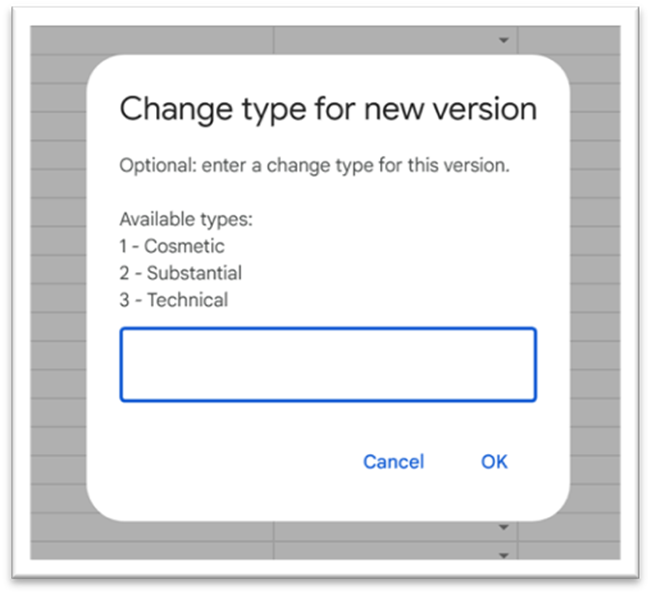
- (Optional) Enter a change type when prompted
What the System Does #
When you create a new version, the tool automatically:
- Archives the previous version
- Increases the version number (Version + 1)
- Creates a new row for the updated version
- Keeps the same ItemID for continuity
- Sets the new version’s Status
- Uses
NewVersionStatusfrom Config (if set) - Otherwise leaves whatever Status you had on the old row
- Uses
- Clears archive-only fields (ArchivedOn, ReasonForArchival)
- Updates VersionDate, LastUpdated, SnapshotPeriod
- Logs the change in the Revisions sheet

- Applies the correct ChangeType
- Old versions: “Archived”
- New version: the change type you entered or a default option
Rules #
- Don’t edit Version manually.
The system manages version numbers and will correct manual edits. - Don’t edit ItemID.
Changing it breaks the version chain. - Don’t repurpose old versions.
Never type new content into archived rows.
Always use Create New Version to update an item.


