
Table of Contents
Overview #
To generate a snapshot report, first set the snapshot period (see Setting the dashboard and snapshot period topic). From the Content Tools menu, select Generate Snapshot.
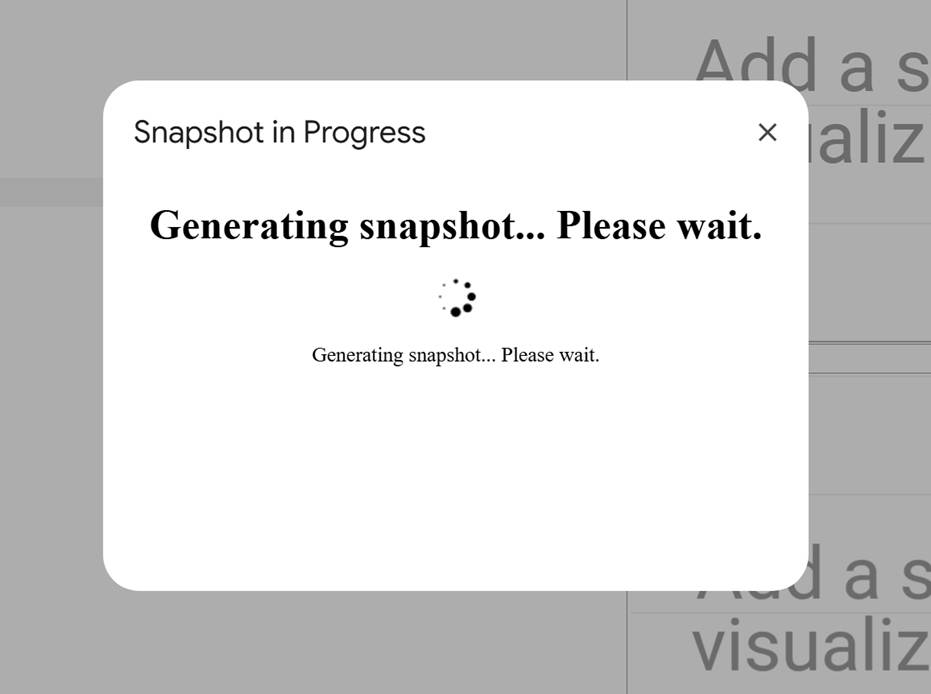
A progress screen displays.
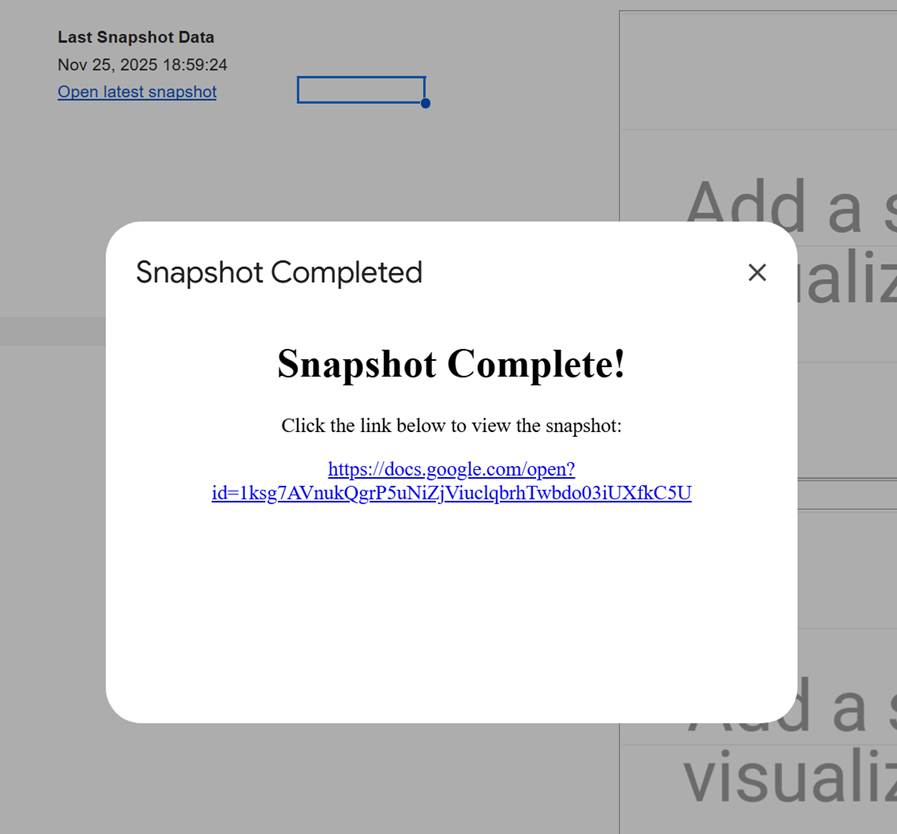
When the process completes, you’ll see a success message. Click the link to view the snapshot report.
The snapshot report opens, and you can see a summary of the activity and changes from the period you set.
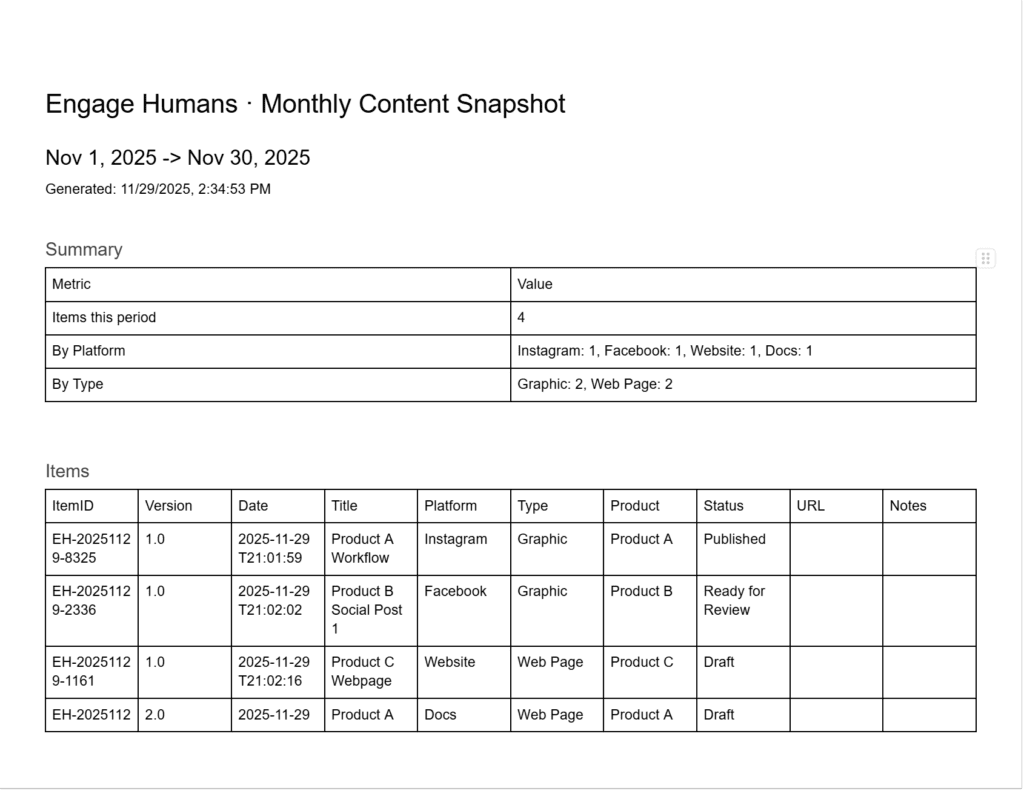
Snapshots produce a Google Doc summarizing activity for the selected period.
What the report includes #
- Total active items in the period
- Items by platform
- Items by type
- All revisions within the period
- A table of active content items
- Any applied filters from the Config sheet
Where the snapshot goes #
The report is created in the Drive folder set in SnapshotFolderId.
Optional #
If SnapshotTemplateDocId is set, the tool applies your formatting automatically.


