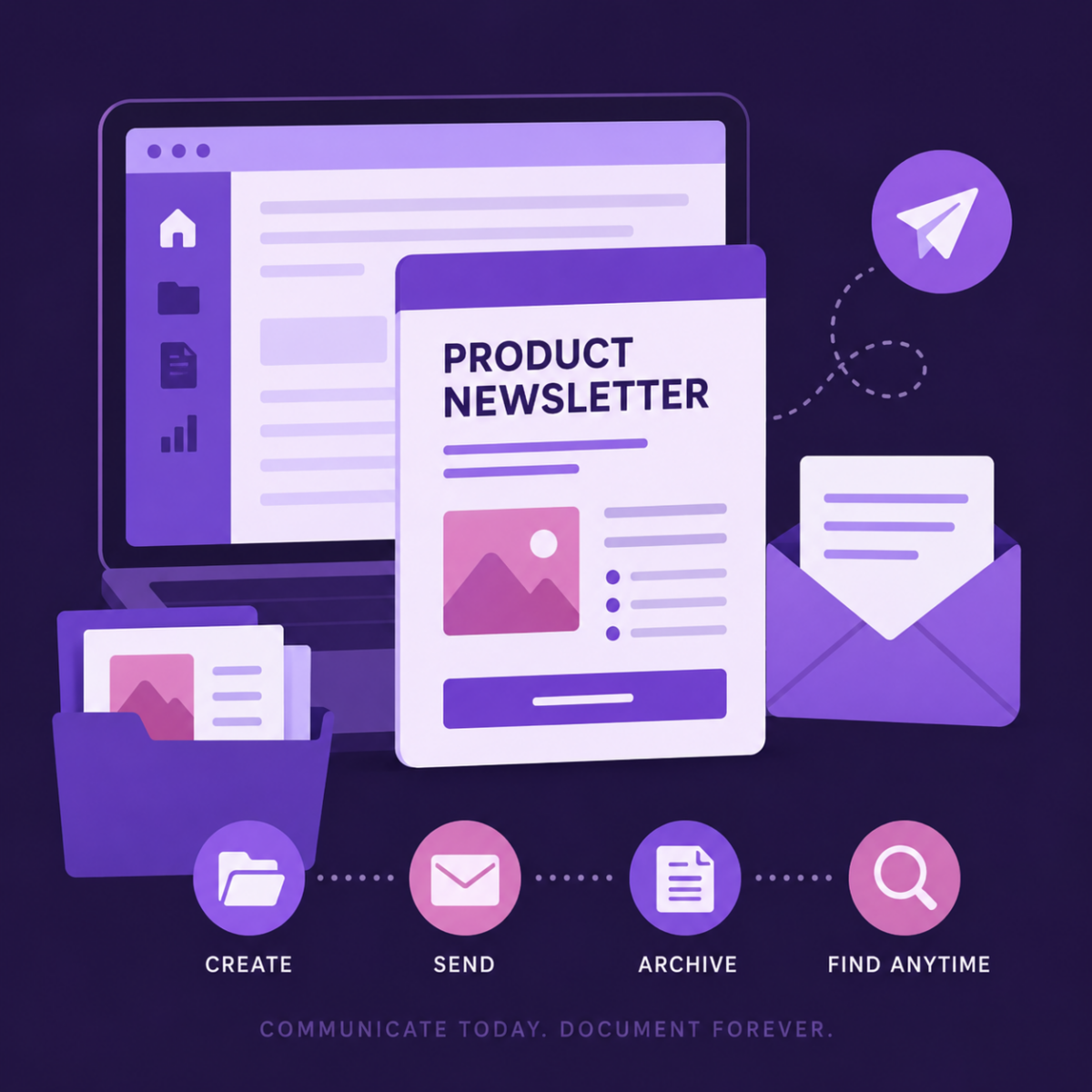

Internal Newsletter Layout for Outlook
Overview
This project started because we needed an internal product newsletter that anyone on the team could send. The catch was that we only had Word and Outlook. No HTML, no email marketing platform, and no design software.
Most polished email newsletters rely on HTML or specialized tools. Outlook isn’t particularly friendly to either, and introducing another platform just to send an internal email once a month didn’t make much sense. We needed something that looked organized and intentional without requiring new software or technical skills.
The goal wasn’t to build the perfect newsletter. It was to build one that people would actually use.
Audience & Context
The audience was internal—primarily product managers, developers, support staff, and other stakeholders who needed regular updates about feature releases, roadmap items, bug fixes, and upcoming work.
There also wasn’t going to be a long-term owner for the newsletter. Whoever had the latest information needed to open the file, make edits, and send it. That meant the solution had to work with tools everyone already knew.
The Challenge
There were plenty of attractive newsletter builders available, but they all introduced new dependencies.
Some required HTML.
Others required a subscription or design platform.
Many assumed someone would own the template long-term.
None of those fit our situation.
Word and Outlook were already available to everyone, but designing something that survived the trip from Word to Outlook without breaking formatting proved the real challenge.
The Solution
Before building anything, I spent time studying newsletter layouts created in BeeFree. I wasn’t interested in copying the designs as much as understanding why they worked.
Most of them relied on the same ideas:
- Clear visual hierarchy
- Consistent spacing
- Repeatable content blocks
- Predictable layouts
Rather than recreating the designs exactly, I recreated the structure.
Using Word tables, I built reusable sections for recurring content like Product Spotlight, New & Upcoming, Bug Fixes, and Release Dates. Each section became a repeatable building block that contributors could edit without affecting the rest of the layout.
One of the biggest design decisions was to rely on tables rather than manual spacing or floating objects. Outlook handles tables much more consistently, so the newsletter maintained its structure when copied into an email.
The result wasn’t flashy, but it was reliable. And for internal communication, reliability mattered far more than visual effects.

What I Learned
This project reinforced something I’ve run into repeatedly in technical communication: constraints often lead to better systems.
If we’d adopted a dedicated email platform, the newsletter probably would have looked more polished. It also would have required another account, another workflow, and another person responsible for maintaining it.
By designing around tools people already used every day, the barrier to contributing stayed low.
Sometimes the best solution isn’t the most sophisticated one. It’s the one your team can continue using after you’ve moved on.
The Outcome
The finished template can be edited entirely in Word and sent directly through Outlook without requiring HTML or design software.
Anyone on the team can update the content, copy it into Outlook, and send it with minimal formatting adjustments. Because the layout is built from reusable sections instead of manual formatting, it’s also much easier to maintain over time.
What I’d Do Differently
If I built it again, I’d start testing Outlook compatibility much earlier.
Most of my formatting adjustments were made near the end of the project, after I started testing real email sends. Catching those issues earlier would have saved several rounds of small spacing and font corrections.
I’d also spend more time experimenting with Word styles to see whether contributor editing could be simplified even further while keeping formatting consistent.
What Success Looks Like
I considered the project successful if:
- Nobody had to fix formatting before sending.
- Anyone on the team could update the newsletter without instructions.
- The email looked clean and intentional.
- The template remained useful even if I wasn’t the one maintaining it.
Word vs. SharePoint News
After finishing this project, I realized Microsoft 365 already includes another option that many organizations overlook: SharePoint News.
Instead of building an email first, SharePoint treats each newsletter as published content. You create a News Post, organize it with built-in content blocks, publish it, and then share it through email. Recipients receive the content directly via email, while the full article remains in SharePoint. Read more about how I set that up in Using SharePoint Newsletters for Internal Product Updates.
Each approach has tradeoffs.
| Word + Outlook | SharePoint News |
|---|---|
| No setup required | Initial setup required |
| Familiar editing experience | Contributors need to know SharePoint |
| Flexible formatting | Structured content blocks |
| Email-first workflow | Intranet-first workflow |
| Great for occasional contributors | Better for ongoing internal publishing |
For teams that already use SharePoint as an internal communication hub, News Posts are probably the better long-term solution. Content stays centralized, previous posts remain searchable, and publishing becomes more consistent.
For our situation, though, the Word approach made more sense. It required no new tools, no training, and no decisions about ownership. Anyone could open the document, make a few edits, and send it.
That’s ultimately what made it successful.